Embedding a Mosel model in an application
Mosel models frequently need to be embedded in applications so they can be deployed easily. In this chapter we discuss
- how to generate a deployment template,
- the meaning and use of BIM files,
- the use of parameterized model and BIM files, and
- how to export and import matrix files with Mosel and IVE.
Generating a deployment template
Select Deploy  Deploy or click the deploy button
  . In the selection window that is opened (Figure Choosing the deployment type) under Run Mosel model from we choose the option Visual Basic. (For deployment with C, Java, or any other supported language the procedure is similar.)
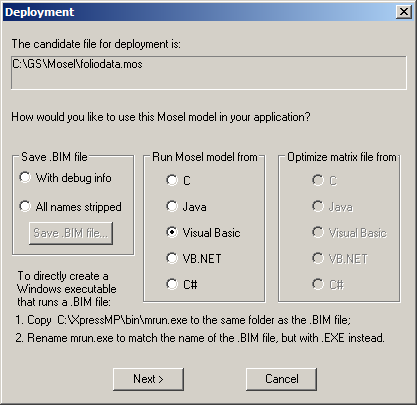
Figure 10.1: Choosing the deployment type
Clicking on the Next button will open a new window with the resulting code (Figure Code preview).
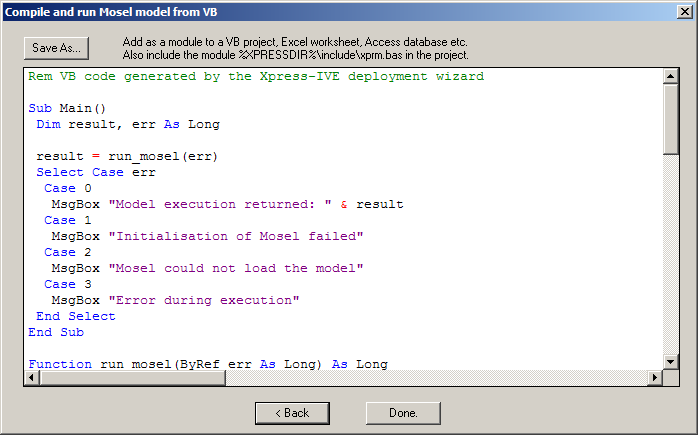
Figure 10.2: Code preview
Use the Save as button to set the name (foliorun.bas) and location of the new file. You may add this file as a module to a Visual Basic project, an MS Excel worksheet, etc. In a Visual Basic project, you also need to include the module xprm.bas for the model to run.
Any C or Java programs created with the deployment wizard can be run on all systems for which Mosel is available.
BIM files
The template we have just generated assumes that the Mosel model is distributed in the form of a BIM file (BInary Model file). A BIM file is a compiled version of the .mos model file that is portable across all platforms for which Mosel is available. It does not include any data read from external files. These must still be provided in separate files, thus making it possible to run the same BIM file with different data sets (see section Parameters below).
To generate a BIM file you may use Build Compile or equivalently, click on the button  . The BIM file will then be created in the same directory as the Mosel file by appending the extension .bim to the file name (instead of .mos). You may also again use the deployment wizard, this time choosing one of the options With debug info or All names stripped under the heading Save .BIM file. The first option is the IVE default, the second option is recommended for final deployment, especially if you wish to protect
your intellectual property in the model, since it removes all names used in your model.
. The BIM file will then be created in the same directory as the Mosel file by appending the extension .bim to the file name (instead of .mos). You may also again use the deployment wizard, this time choosing one of the options With debug info or All names stripped under the heading Save .BIM file. The first option is the IVE default, the second option is recommended for final deployment, especially if you wish to protect
your intellectual property in the model, since it removes all names used in your model.
It is also possible to execute Mosel source files (.mos) directly from an application (see the following section). In this case the BIM file does not need to be generated.
Modifying the template
Executing Mosel models
Leaving out the error checking, the relevant lines of the generated code are the following:
Sub Main()
 Dim result As Long
 Dim model As Long

' Initialize Mosel
 XPRMinit

' Load compiled model
 model = XPRMloadmod("foliodata.bim", "")

' Run the model
 XPRMrunmod model, result, ""

' Unload the model
 XPRMunloadmod (model)
End Sub
If we do not wish to create the BIM file separately, we may also compile, load, and run the Mosel model foliodata.mos directly, for instance as shown in the following code fragment.
Sub Main()
 Dim result As Long
 Dim model As Long

' Initialize Mosel
 XPRMinit

' Execute = compile/load/run a model
 XPRMexecmod "", "foliodata.mos", "", result, model

' Unload the model
 XPRMunloadmod (model)
End Sub
Parameters
In Chapter 4 we have shown how to modify parameter settings with IVE or when running the Mosel standalone version (for instance in batch files or scripts). The model parameters may also be reset when a Mosel model or BIM file is embedded in an application, making it possible to solve many different problem instances without having to change the model source.
In this example (file folioparam.bas) we modify the name of the result file and the settings for two numerical parameters of our model foliodata.mos. All other model parameters will take the default values specified at their definition in the model.
Sub Main()
 Dim result As Long
 Dim model As Long

' Initialize Mosel
 XPRMinit

' Execute model with changed parameters
 XPRMexecmod "", "foliodata.mos", "OUTFILE=result2.dat,MAXRISK=0.4,MAXVAL=0.25",
  result, model

' Unload the model
 XPRMunloadmod(model)
End Sub
Similarly, to run the BIM file with changed parameter settings, we simply need to add the parameters to the `run' function call:
XPRMrunmod model, result, "OUTFILE=result2.dat,MAXRISK=0.4,MAXVAL=0.25"
Redirecting the VB output
Since Visual Basic does not provide any standard output channel, Mosel's VB interface enables the user to redirect all output produced by Mosel to files. To redirect all output of a model to the file folioout.txt add the following function call before the execution of the Mosel model:
' Redirect all output to the file "folioout.txt"
 XPRMsetdefstream vbNull, XPRM_F_OUTPUT, "folioout.txt"
Since in our example foliodata.mos the output is already redirected to the file result.dat by the model itself, it may be more important to be able to recover any possible error messages produced by Mosel: in the line above, replace XPRM_F_OUTPUT by XPRM_F_ERROR to redirect the error stream to a file.
Matrix files
Exporting matrices
If the optimization process with Xpress-Optimizer is started from within a Mosel program, or if the solving procedure is part of the application into which a Mosel model has been embedded, then the problem matrix is loaded in memory into the solver without writing it out to a file (which would be expensive in terms of running time). However, in certain cases it may still be required to be able to produce a matrix. With Xpress-MP, the user has the choice between two matrix formats: extended MPS and extended LP format, the latter being in general more easily human-readable since constraints are printed in algebraic form.
With Mosel and IVE, there are several possibilities for generating a matrix:
- Using the IVE menu:
After executing the model select Build Export matrix file or click on the button  . In the resulting matrix export window choose the file name and type and select the objective function (Figure Matrix export window).

Figure 10.3: Matrix export window
- With a matrix generation statement in the model file:
to create an MPS matrix for our problem add the lineexportprob(EP_MPS, "folio", Return)
for an LP format matrix (which we intend to maximize at some point) add the lineexportprob(EP_MAX, "folio", Return)
immediately before or instead of the optimization statement. - From an application after having executed the model file: only possible with C programs
Importing matrices
Matrices may also be loaded and solved with IVE:
Select Build Optimize matrix file or click on the button  . The following window opens (Figure Matrix import window).

Figure 10.4: Matrix import window
When solving a matrix with IVE, some of the displays are disabled since a matrix does not contain the full information of a Mosel model. However, the solution information in the right window (execution log, problem statistics, etc.) remains accessible (Figure ).

Figure 10.5: Matrix optimization output
If you have any comments or suggestions about these pages, please send mail to docs@dashoptimization.com.