Inputting and solving a Linear Programming problem
In this chapter we take the example formulated in Chapter 2 and show how to transform it into a Mosel model which is solved as an LP using Xpress-IVE. More precisely, this involves the following steps:
- starting up Xpress-IVE,
- creating and saving the Mosel file,
- using the Mosel language to enter the model,
- correcting errors and debugging the model,
- solving the model and understanding the LP optimization displays in IVE,
- viewing and verifying the solution and understanding the solution in terms of the real world problem instance.
Chapter 10 shows how to formulate and solve the same example with BCL and in Chapter 15 the problem is input and solved directly with Xpress-Optimizer.
Starting up Xpress-IVE and creating a new model
We shall develop and execute our Mosel model with the graphical environment Xpress-IVE.
If you have followed the standard installation procedure for Xpress-IVE, start the program by a double click onto the icon on the desktop or select Start  Programs Xpress-MP Xpress-IVE. Otherwise, you may also start up IVE by typing ive in a DOS window or, if you have installed any model examples, by double clicking onto a model file (file with extension .mos).
Xpress-IVE opens with a window that is subdivided into several panes:

Figure 4.1: IVE at startup
At the top, we have the menu and tool bars. The window on the left is the project bar, at the bottom is located the info bar, and the right window is the run bar. You may blend out these bars using the View menu or with the toggle buttons:  To restore the original layout select View Repair Window Layout.
The central, grey window is the place where the working file will be displayed.
To restore the original layout select View Repair Window Layout.
The central, grey window is the place where the working file will be displayed.
To create a new model file select File New or alternatively, click on the first button of the tool bar:  This will open a dialog window where you can choose a directory and enter the name of the new file. We shall give it the
name foliolp, the extension .mos for `Mosel file' will be appended automatically. Click Save to confirm your choice. The central window of IVE has now turned white and the cursor is positioned at its top line, ready
for you to enter the model into the input template displayed by IVE.
This will open a dialog window where you can choose a directory and enter the name of the new file. We shall give it the
name foliolp, the extension .mos for `Mosel file' will be appended automatically. Click Save to confirm your choice. The central window of IVE has now turned white and the cursor is positioned at its top line, ready
for you to enter the model into the input template displayed by IVE.
LP model
The mathematical model in the previous chapter may be transformed into the following Mosel model entered into IVE:
model "Portfolio optimization with LP"
 uses "mmxprs"                       ! Use Xpress-Optimizer

 declarations
  SHARES = 1..10                     ! Set of shares
  RISK = {2,3,4,9,10}                ! Set of high-risk values among shares
  NA = {1,2,3,4}                     ! Set of shares issued in N.-America
  RET: array(SHARES) of real         ! Estimated return in investment

  frac: array(SHARES) of mpvar       ! Fraction of capital used per share
 end-declarations

 RET:: [5,17,26,12,8,9,7,6,31,21]

! Objective: total return
 Return:= sum(s in SHARES) RET(s)*frac(s)

! Limit the percentage of high-risk values
 sum(s in RISK) frac(s) <= 1/3

! Minimum amount of North-American values
 sum(s in NA) frac(s) >= 0.5

! Spend all the capital
 sum(s in SHARES) frac(s) = 1

! Upper bounds on the investment per share
 forall(s in SHARES) frac(s) <= 0.3

! Solve the problem
 maximize(Return)

! Solution printing
 writeln("Total return: ", getobjval)
 forall(s in SHARES) writeln(s, ": ", getsol(frac(s))*100, "%")

end-model
Let us now try to understand what we have just written.
General structure
Every Mosel program starts with the keyword model, followed by a model name chosen by the user. The Mosel program is terminated with the keyword end-model.
All objects must be declared in a declarations section, unless they are defined unambiguously through an assignment. For example,
Return:= sum(s in SHARES) RET(s)*frac(s)
defines Return as a linear constraint and assigns to it the expression
sum(s in SHARES) RET(s)*frac(s)
There may be several such declarations sections at different places in a model.
In the present case, we define three sets, and two arrays:
- SHARES is a so-called range set—i.e., a set of consecutive integers (here: from 1 to 10).
- RISK and NA are simply sets of integers.
- RET is an array of real values indexed by the set SHARES, its values are assigned after the declarations.
- frac is an array of decision variables of type mpvar, also indexed by the set SHARES. These are the decision variables in our model.
The model then defines the objective function, two linear inequality constraints and one equality constraint and sets upper bounds on the variables.
As in the mathematical model, we use a forall loop to enumerate all the indices in the set SHARES.
Solving
With the procedure maximize, we call Xpress-Optimizer to maximize the linear expression Return. As Mosel is itself not a solver, we specify that Xpress-Optimizer is to be used with the statement
uses "mmxprs"
at the begin of the model (the module mmxprs is documented in the `Mosel Language Reference Manual').
Instead of defining the objective function Return separately, we could just as well have written
maximize(sum(s in SHARES) RET(s)*frac(s))
Output printing
The last two lines print out the value of the optimal solution and the solution values for all variables.
To print an additional empty line, simply type writeln (without arguments). To write several items on a single line use write instead of writeln for printing the output.
Formating
Indentation, spaces, and empty lines in our model have been added to increase readability. They are skipped by Mosel.
Line breaks: It is possible to place several statements on a single line, separating them by semicolons, like
RISK = {2,3,4,9,10}; NA = {1,2,3,4}
But since there are no special `line end' or continuation characters, every line of a statement that continues over several lines must end with an operator (+, >=, etc.) or characters like `,' that make it obvious that the statement is not terminated.
As shown in the example, single line comments in Mosel are preceded by !. Comments over multiple lines start with (! and terminate with !).
Correcting errors and debugging a model
Having entered the model printed in the previous section, we now wish to execute it, that is, solve the optimization problem
and retrieve the results. Choose Build Run or alternatively, click on the run button: 
At a first attempt to run a model, you are likely to see the message `Compilation failed. Please check for errors.' The bottom window displays the error messages generated by Mosel, for instance as shown in the following figure (Figure Info bar with error messages).

Figure 4.2: Info bar with error messages
When typing in the model from the previous section (there printed in its correct form), we have deliberately introduced some common mistakes that we shall now correct. Clicking on an error message will highlight the corresponding line in the model.
The first message:
error 100: Syntax error
takes us to the line
RET:: [5,17,26,12,8,9,7,6,31,21
We need to add the closing bracket to terminate the definition of RET (if the definition continues on the next line, we need to add a comma at the end of this line to indicate continuation).
The next message:
warning 121: Statement with no effect
takes us to the line
Return = sum(s in SHARES) RET(s)*frac(s)
Warnings will not hinder the model from being executed, but since the Mosel compiler tells us that this line has no meaning, something must be wrong. Finding the error here requires taking a very close look: instead of := we have used =. Since Return should have been defined by assigning it the sum on the right side, this statement now does not have any meaning.
After correcting this error, we try to run the model again, but we are still left with one error message:
error 123: `maximize' is not defined
located in the line
maximize(Return)
The procedure maximize is defined in the module mmxprs but we have forgotten to add the line
uses "mmxprs"
at the beginning of the Mosel model. After adding this line, the model compiles correctly.
A useful functionality to quickly see what is provided by a module is provided in the form of the module browser: select Modules List available modules or alternatively, click on the button  . This opens a window with the list of modules available in your Xpress installation and also allows you to check in detail
the functionality (subroutines, types, constants, etc.) added by each module to the Mosel language.
. This opens a window with the list of modules available in your Xpress installation and also allows you to check in detail
the functionality (subroutines, types, constants, etc.) added by each module to the Mosel language.
If you do not remember the correct name of a Mosel keyword while typing in a model, then you may use the code completion feature of the IVE editor: hold down the CRTL and spacebar keys to get a list of keywords from which you may select the desired one.
Debugging
If a model is correct from Mosel's point of view, this does of course not guarantee that it really does what we would like it
to do. For instance, we may have forgotten to initialize data, or variables and constraints are not created correctly (they
may be part of complex expressions, including logical tests etc.). To check what has indeed been generated by Mosel, we may
pause the
execution of the model immediately before it is solved. Select Build Options or alternatively, click on the run options button:  In the dialog window that gets displayed, under Matrix visualization check Show original matrix and confirm with Apply. When we now execute the model, it will generate a graphical matrix display in the Run bar on the right side of the IVE workspace (Figure LP matrix display). Select the tab Matrix at the bottom of the Run bar and then Graphical original at its top to view the display.

Figure 4.3: LP matrix display
The upper part shows the general structure and the lower part allows to zoom in onto single coefficients, indicating their values. The display uses blue color for positive coefficients, red for negative and white or grey for zero-valued coefficients. One may recognize the three constraints of our model: note that the constraints in matrices always appear in inverse order from their definition in the model.
Another change to the screen display may be observed in the left window of the workspace: it now displays all entities defined in the model. Click on the `+' signs to view the full information (Figure Entity display).
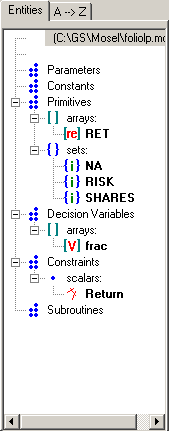
Figure 4.4: Entity display
When moving the cursor slowly over the various entities, their current contents and status are displayed. This allows you, for instance, to check the contents of index sets and data arrays and to see that the array frac consists indeed of 10 variables. You can also double-click on an entity to obtain a new window with the full contents of the entity value (useful especially for large arrays). In addition, when clicking on an entity its occurences in the editor are shown in the info bar.
To inspect models during their execution you may use the
IVE debugger. Select Debug Start/Continue or click on the button  to start or stop the debugger. The Debug menu entries and the debugger buttons allow you to perform standard debugging tasks, such as setting breakpoints (button
 ), running a model up to the cursor position (button
  ), or executing it step-by-step (buttons
  and
and  ).
).
Solving, optimization displays, and viewing the solution
As mentioned in the previous section, to execute our model we have to select Build Run or alternatively, click on the run button: After the successful execution of our model the screen display changes to the following (Figure Display after model execution).

Figure 4.5: Display after model execution
The bottom window contains the log of the Mosel execution, the right window displays solution information and the left window displays all model entities. Choose the tab Output/input under the right window to see the output printed by our program:
Total return: 14.0667
1: 30%
2: 0%
3: 20%
4: 0%
5: 6.66667%
6: 30%
7: 0%
8: 0%
9: 13.3333%
10: 0%
This means, that the maximum return of 14.0667 is obtained with a portfolio consisting of shares 1, 3, 5, 6, and 9. 30% of the total amount are spent in shares 1 and 6 each, 20% in 3, 13.3333% in 9 and 6.6667% in 5. It is easily verified that all constraints are indeed satisfied: we have 50% of North-American shares (1 and 3) and 33.33% of high-risk shares (3 and 9).
Now select the tab Stats to obtain the detailed LP optimization information shown in Figure LP status display.
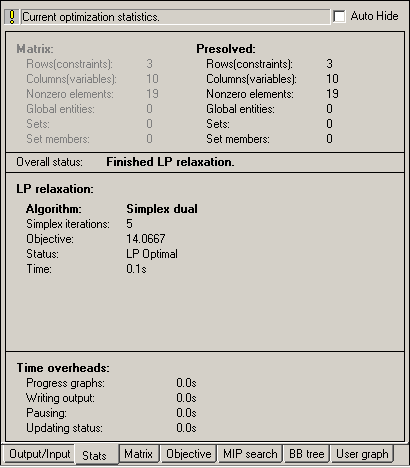
Figure 4.6: LP status display
The upper part of the window contains some statistics about the matrix, in its original and in presolved form (presolving a problem means applying some numerical methods to simplify or transform it). The center part tells us which LP algorithm has been used (Simplex), and the number of iterations and total time needed by the algorithm. The lower part lists the time overheads caused by the various displays in IVE. Since this problem is very small, it is solved almost instantaneously.
To see more detailed solution information than what is printed by our model, go to the entities display in the left hand side window, and expand the decision variables and constraints by clicking on the `+' signs. When moving the cursor slowly over the different entities, the full solution information gets displayed (for large arrays double-click on the entity to obtain a new window with the full contents of the entity value). Note that under `constraints' only the objective function is listed since this is the only constraint that has been assigned a name.
String indices
To make the output of the model more easily understandable, it may be a good idea to replace the numerical indices by string indices.
In our model, we replace the three declaration lines
  SHARES = 1..10
  RISK = {2,3,4,9,10}
  NA = {1,2,3,4}
by the following lines:
  SHARES = {"treasury", "hardware", "theater", "telecom", "brewery",
            "highways", "cars", "bank", "software", "electronics"}
  RISK = {"hardware", "theater", "telecom", "software", "electronics"}
  NA = {"treasury", "hardware", "theater", "telecom"}
And in the initialization of the array RET we now need to use the indices:
 RET::(["treasury", "hardware", "theater", "telecom", "brewery",
        "highways", "cars", "bank", "software", "electronics"])[
	5,17,26,12,8,9,7,6,31,21]
No other changes in the model are required. We save the modified model as foliolps.mos.
The solution output then prints as follows which certainly makes the interpretation of the result easier and more immediate:
Total return: 14.0667
treasury: 30%
hardware: 0%
theater: 20%
telecom: 0%
brewery: 6.66667%
highways: 30%
cars: 0%
bank: 0%
software: 13.3333%
electronics: 0%
Of course, the entity display also works with these string names:

Figure 4.7: Entity display
If you have any comments or suggestions about these pages, please send mail to docs@dashoptimization.com.